Using BotTabIndex in a robot.
Using an arbitrage bot as an example, let's analyze how to use the BotTabIndex tab.
We have the following task: to build a spread chart for two trading instruments, apply a price channel indicator to the chart, and open positions in opposite directions when the spread diverges. Essentially, we aim to create an arbitrage strategy that opens positions when the spread diverges, in the hope of waiting for a narrowing and exiting the positions. We will use the LastDayMiddle indicator, which we created in the topic on indicators, as the channel. The example robot is for demonstration purposes and does not guarantee profits. Its purpose is to familiarize you with the capabilities of BotTabIndex.
Let's consider the list of fields used in the robot:
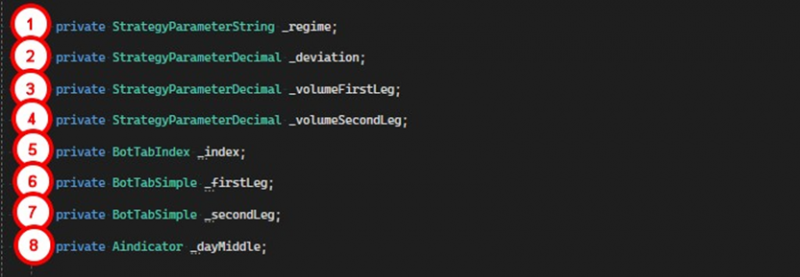
1. Bot operation mode, On/Off, indicating whether it is enabled or disabled.
2. Parameter for setting the deviation size for the indicator.
3. Trading volume for the first instrument.
4. Trading volume for the second instrument.
5. Field to store a reference to the index tab.
6. Simple tab for the first instrument.
7. Simple tab for the second instrument.
8. The indicator used in the robot.
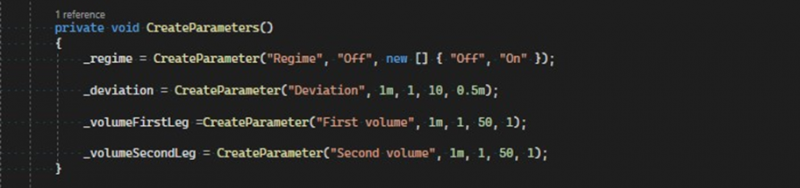
To avoid cluttering the constructor, we will move the parameter initialization to a separate method called CreateParameters:
Now let's consider the constructor of the robot:
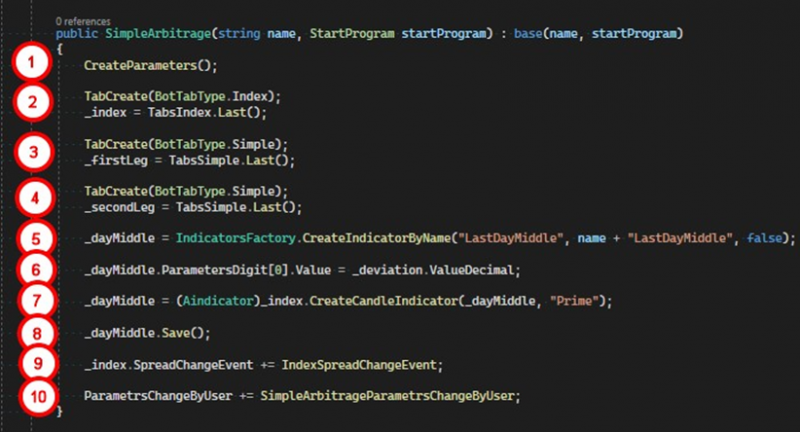
1. Create parameters.
2. Create a BotTabIndex tab and save the reference to a variable. This is the tab that constructs the spread chart and notifies the robot of changes in the relationship between the instruments.
3. Create a BotTabSimple tab. This tab will be used for trading the first security.
4. Create a BotTabSimple tab for trading the second security.
5. Use a factory to create the required indicator.
6. Set up the indicator by assigning the deviation parameter value.
7. Draw the created indicator on the spread chart.
8. Save the indicator settings.
9. Set the SpreadChangeEvent event handler for the spread chart.
10. Subscribe to the event for changing strategy parameters.
An important note regarding the CreateCandleIndicator method is that it returns a reference to the indicator cast to the IIndicator interface. We need to cast it to the Aindicator type to access all the capabilities of the indicator. It is also essential to update the indicator reference in the _dayMiddle field.
When the parameters change, we update the indicator settings, save them, and reload the indicator in the event handler:

Next, let's explore the spread change event handler method, which includes a couple of filters:
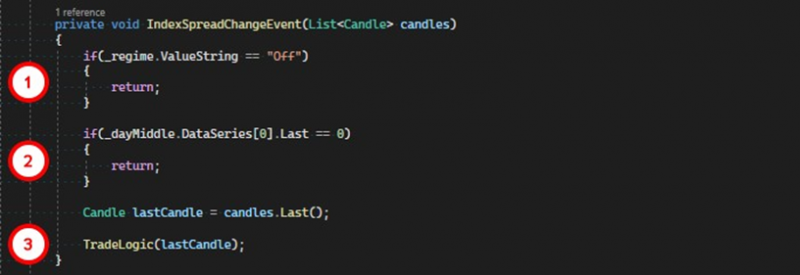
1. If the robot is turned off, exit the method.
2. If the last value of one of the indicator series is zero, it means the indicator is not yet ready, so exit the method.
3. Call the method with the trading logic.
Now, let's look at the main method of the robot, which contains the trading logic:
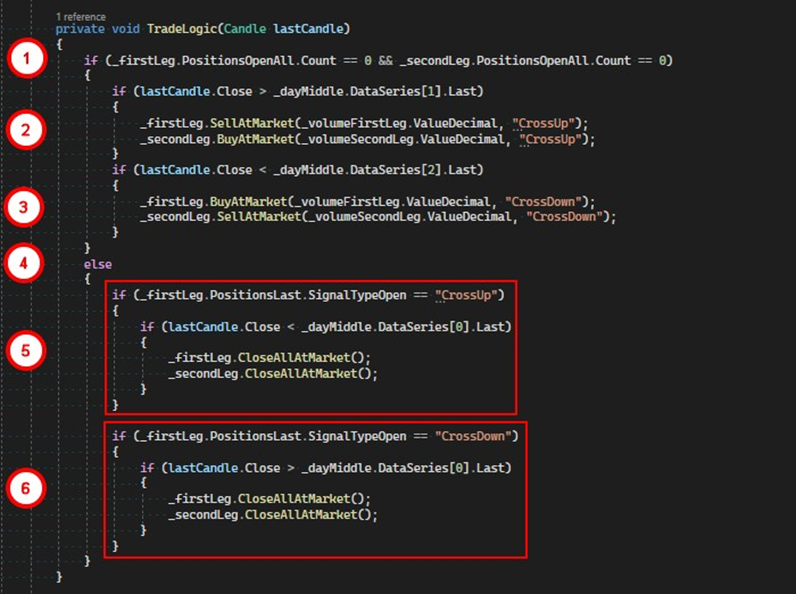
1. If there are no positions open for both instruments, enter the conditional statement where the logic for opening positions is executed.
2. If the spread chart has closed above the upper deviation boundary of the indicator, sell the first security and buy the second.
3. If the spread chart has closed below the lower deviation boundary of the indicator, buy the first security and sell the second.
4. If there are open positions in the simple tabs, proceed to the logic for closing positions.
5. Using the signal type for the opening, determine where to expect the spread to intersect the central line of the indicator. If we opened positions when the spread crossed the upper deviation boundary, we expect the spread to move below the central line of the indicator. Upon meeting these conditions, close all positions.
6. If positions were opened after the spread broke through the lower deviation boundary of the indicator, we expect the spread to return to the center from the lower boundary. Upon meeting these conditions, close all positions.
The process of launching and configuring this algorithm, as well as the principles of its operation, will be covered in the next article. The code for the algorithm is available at the provided link.
If you have any difficulties or questions, please write to the support chat. Link