Setting the BotTabIndex from the visual interface.
In this article, we will consider the process of setting up strategies using the BotTabIndex class as an example of launching a robot from the previous topic.
Create an instance of the robot in the user interface:
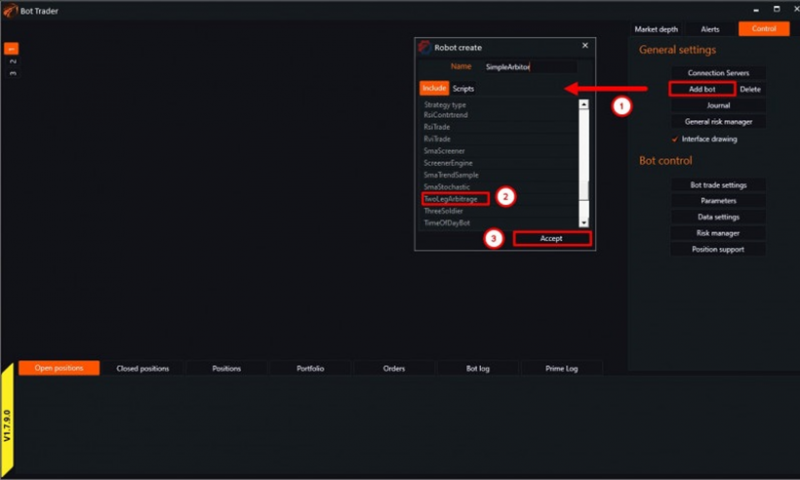
Fig. 1. Add robot window.
1. Click on the "Add Bot" button in the control panel.
2. Choose the desired one.
3. Click the "Accept" button.
After adding the robot, the terminal will look like this:
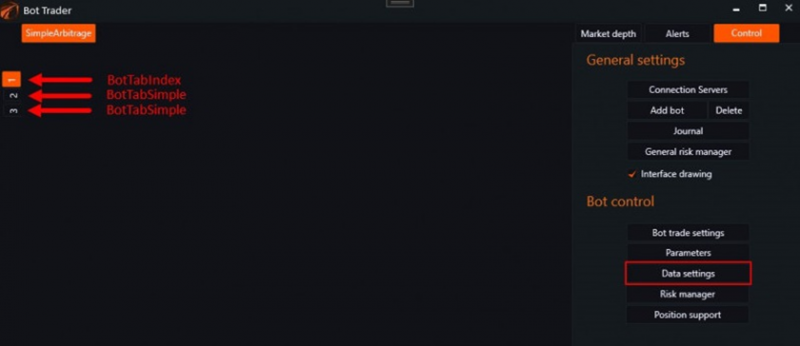
Fig. 2. Tab layout in the terminal.
All tabs created in the robot will be displayed on the chart panel in the order of their creation. In our case, BotTabIndex comes first. To configure the tab, you need to activate it and click the "Data Settings" button.
After that, the window for adding sources to the index will open:
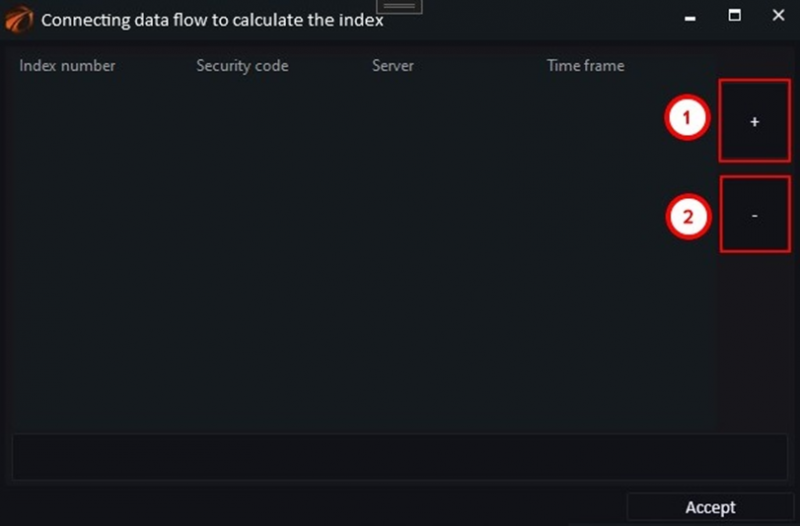
Fig. 3. Window for adding sources to the index.
1. Add a new source.
2. Delete the selected source.
Clicking on "+" will open a window where you need to configure data series and select tools:
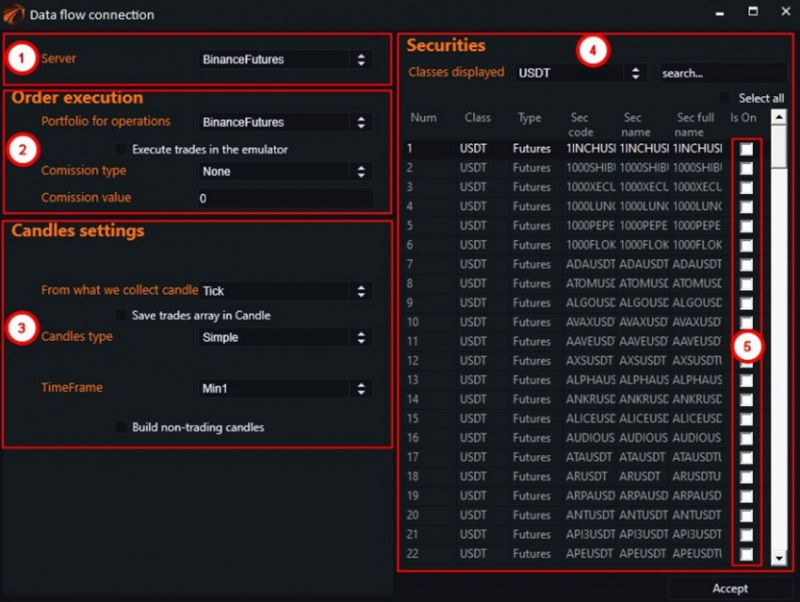
Fig. 4. Data source settings window for the index.
1. Choice of trading platform.
2. Execution settings for this connection.
3. Setting up the ordered data series.
4. Menu for selecting tools.
5. Multiple tool selection is supported. To do this, check the boxes next to the ones you need.
In our case, we will choose two securities - BTCUSDT and ETHUSDT, as we need to build a spread. After clicking the "Accept" button, the following view will be obtained:
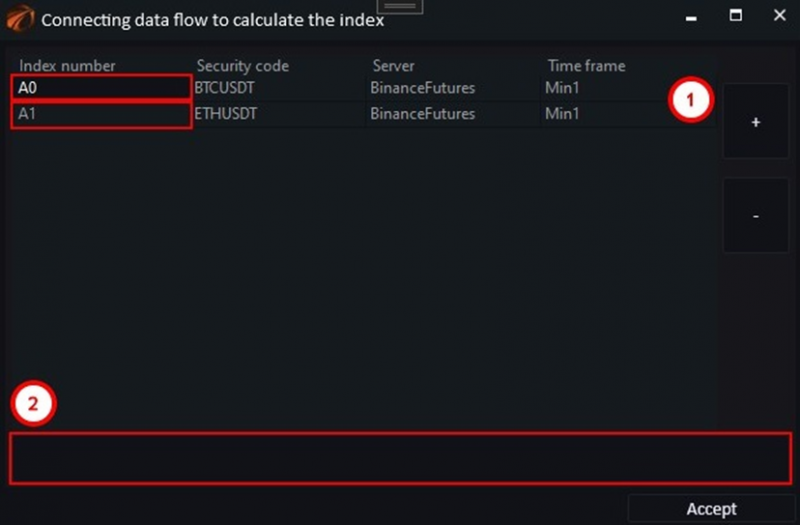
Fig. 5. Data sources for the index.
1. Each added security is assigned a special identifier by the program, in our case it is A0 and A1.
2. By using these identifiers in the field numbered 2, the formula for calculating the chart price is entered.
If you need to change any data, double-click on the line with the desired tool, and the connection settings window will open.
Enter the following formula in the special field:

Fig. 6. Custom formula.
Now let's figure out how the program processes this formula. As we found out, the BTCUSDT security is represented by the A0 identifier, and ETHUSDT is represented by the A1 identifier, so in further descriptions we will abstract from the instrument names and only use these values.
After clicking the "Accept" button, the index tab processes candlesticks in pairs. The opening price of the A0 security is divided by the opening price of A1. The minimum, maximum, and closing prices of the candlesticks are processed in the same way, and based on this data, spread candlesticks are constructed. The operation is then repeated for newly appearing candlesticks. If ticks are used as data sources, the same calculations with trade prices are used to build the spread.
The formula allows the use of the following symbols: «+», «-», «*», «/», as well as round brackets «()» to set the priority of operation calculations. Numbers can be used to balance the weights.
For example, the formula for calculating the basket index from five instruments may look like this:
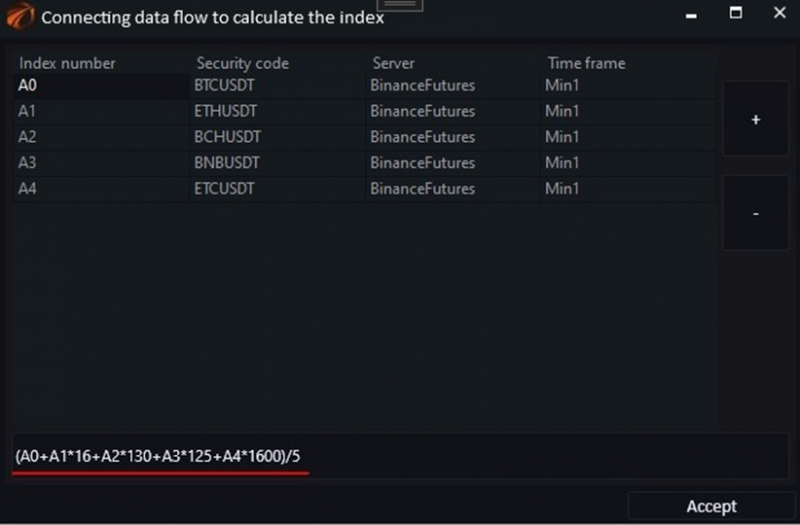
Fig. 7. Example formula for calculating an index from five securities.
The most expensive instrument is the one under the A0 number, so the weights of the others are balanced by multiplying by certain values, then the sum is divided by the total amount.
Returning to the configuration of our robot. Two more simple tabs need to be configured for trading. Activate the next tabs one by one and click the "Data Settings" button. The window will open.
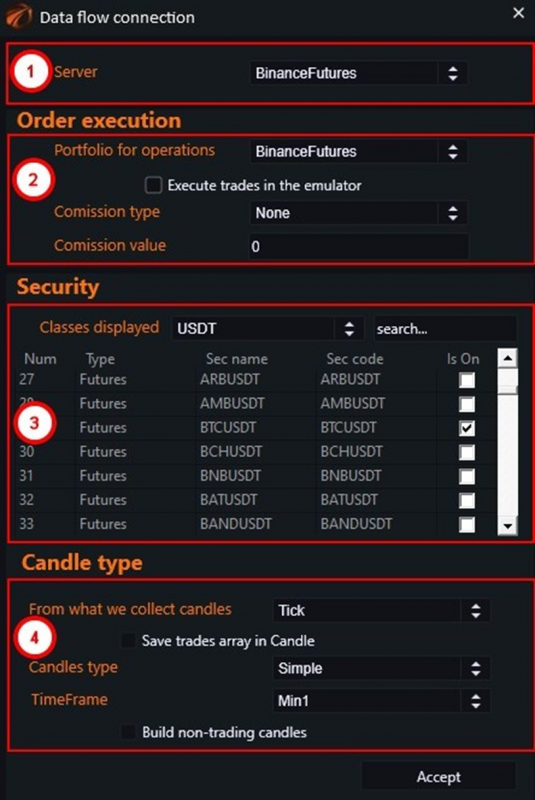
Fig. 8. Example formula for calculating an index from five securities.
1. Choice of trading platform.
2. Execution settings for this connection.
3. Selection of a trading instrument. Only one security can be selected.
4. Setting up the ordered data series.
After performing the manipulations, you can see the spread chart constructed according to the specified formula. On the chart, we will mark how the bot should trade:
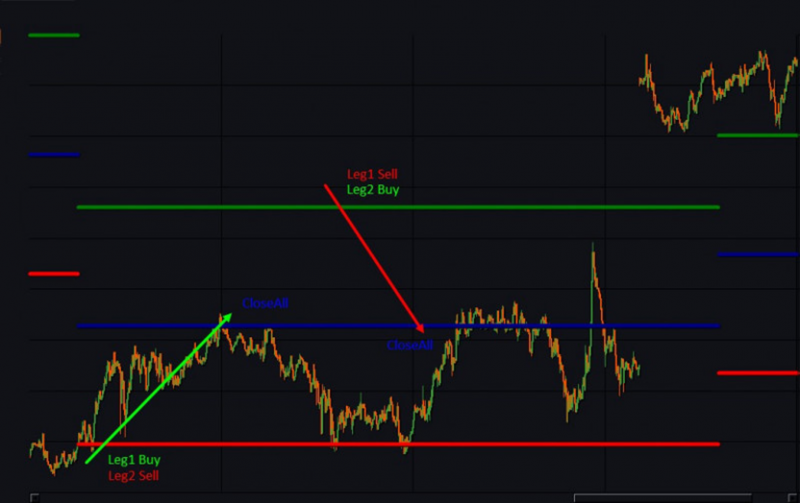
Fig. 9. Robot operation scheme on the spread chart.
Positions will be displayed on simple tabs under number 2 and 3 for the first and second legs, respectively.
The robot settings are available in the parameter window:
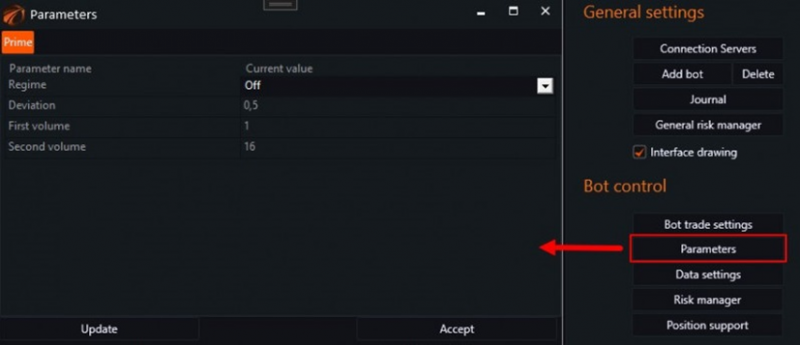
Fig. 10. Robot parameter window.
Don't forget to set the corresponding volume for each instrument.
If you have any difficulties or questions, please write to the support chat. Link