Opening positions manually in OsEngine journal.

In this article, we will learn how to open positions manually.
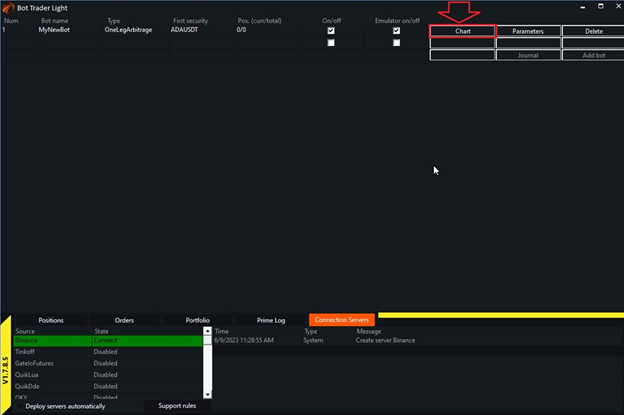
Open your server, select the robot to which you want to assign your position (the coins must match! That is, if the bot trades ETH, you cannot open a position in BNB using it). Click on the «Cart» button:
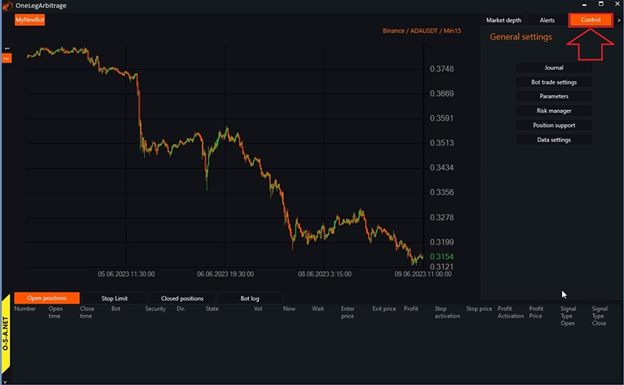
Then click on «Control».
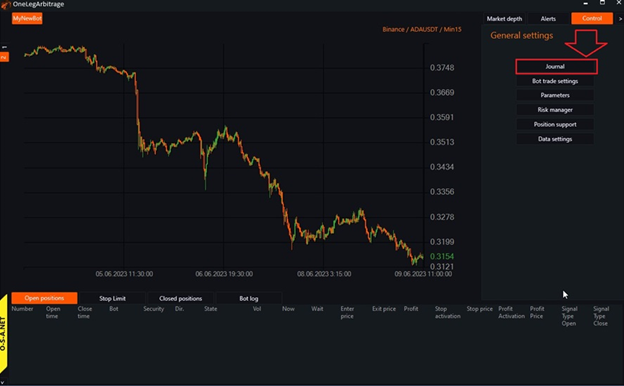
And «Journal».
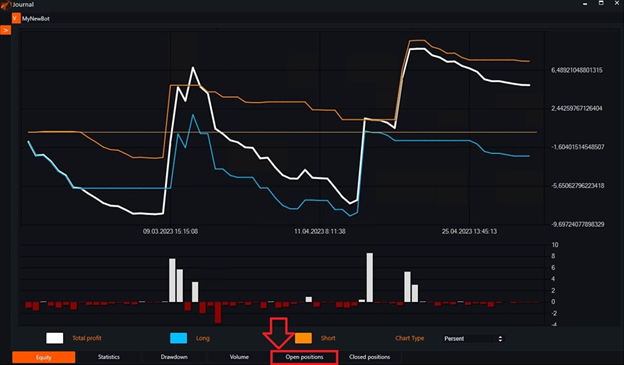
Next, click on «Open positions».
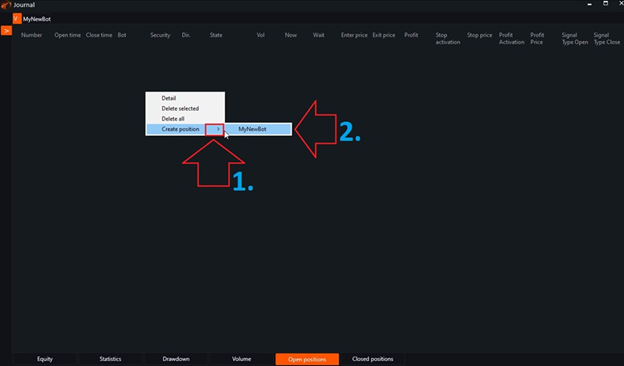
Click with the right mouse button on an empty field, then in the appeared window:
1. Click on the arrow next to the label «Create position»
2. Then click on the appeared name.
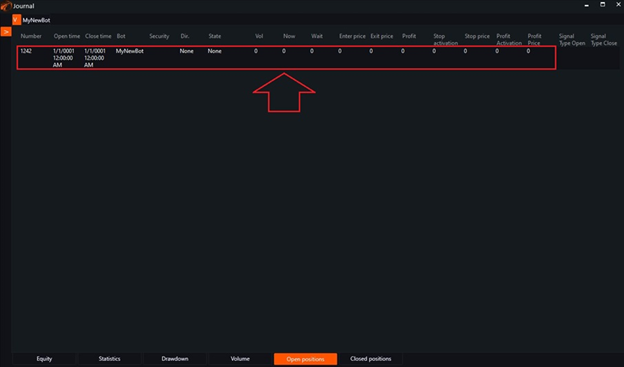
We see that the position has been created.
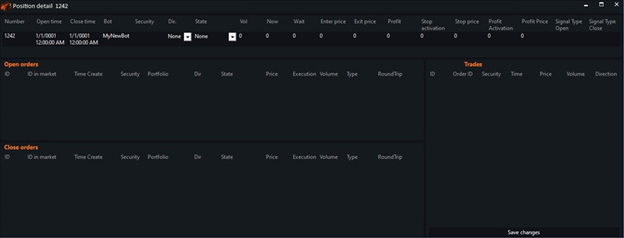
The settings menu for a specific position is invoked by double-clicking the left mouse button on this position and it looks like this.
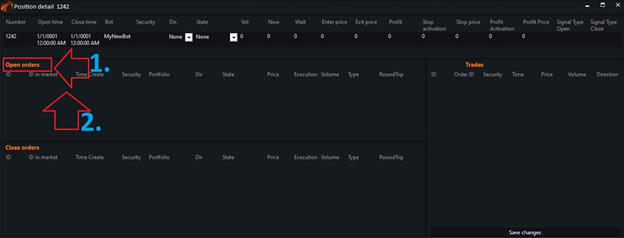
Now,
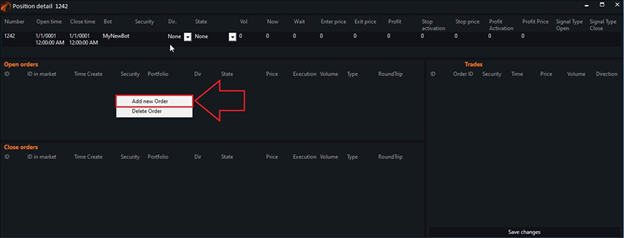
1. In the «Open orders» field.
2. Double-click to call the order management menu.
Select «Add new Order».
The order has been added.
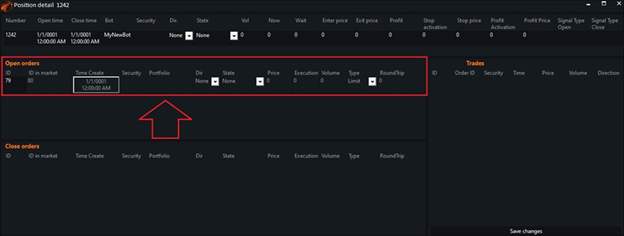
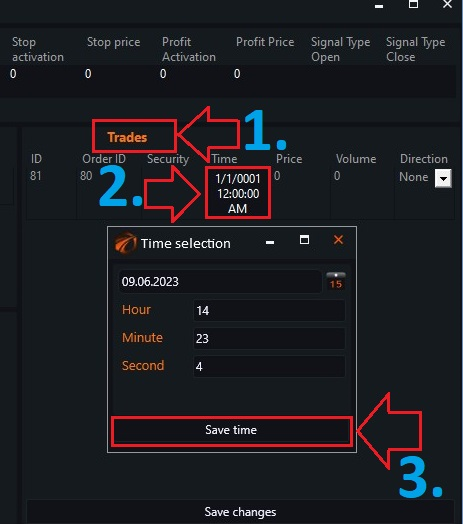
Now, in the same way, add a trade in the «Trades» field.
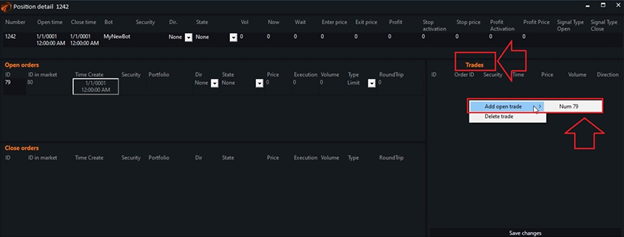
The trade has been added.
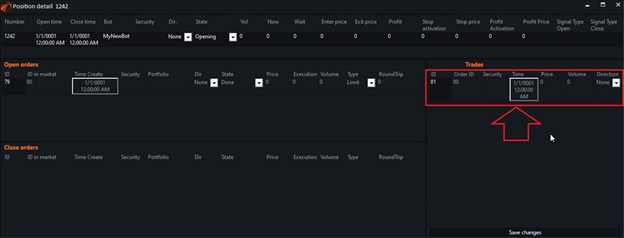
The next thing to do is to synchronize the time. Click the button.
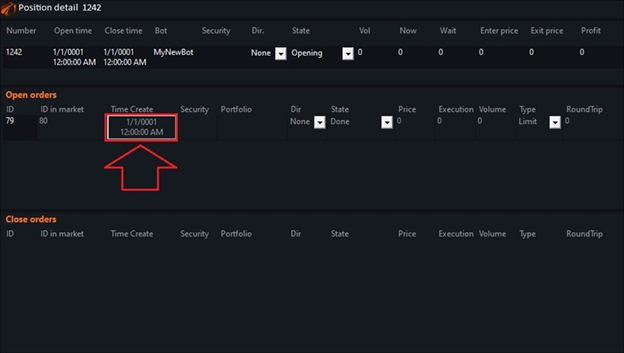
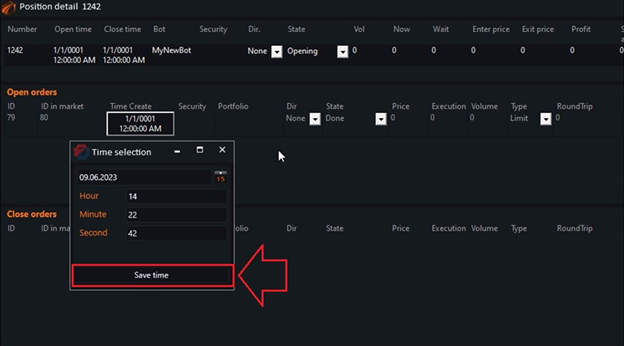
Then you can leave it as default or set the time you need. Click «Save time».
Repeat the same steps in the «Trades» field.
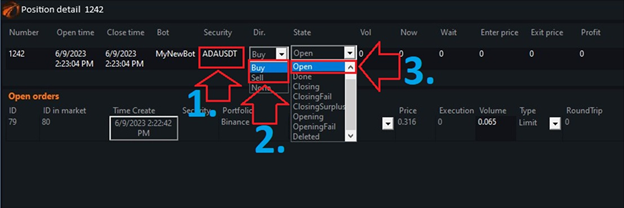
In the top row,
1. Enter the pair name in capital letters in English.
2. Select the position direction («Buy/Sell»).
3. Set the position state to «Open».
Then, in the «Open orders» field, do the following:
1. Write the portfolio name.
2. Set the direction.
3. Specify the price.
4. Specify the desired volume.
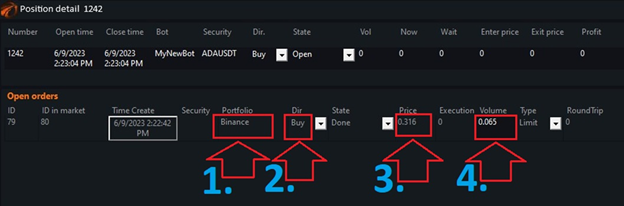
Duplicate in the «Trades» field.
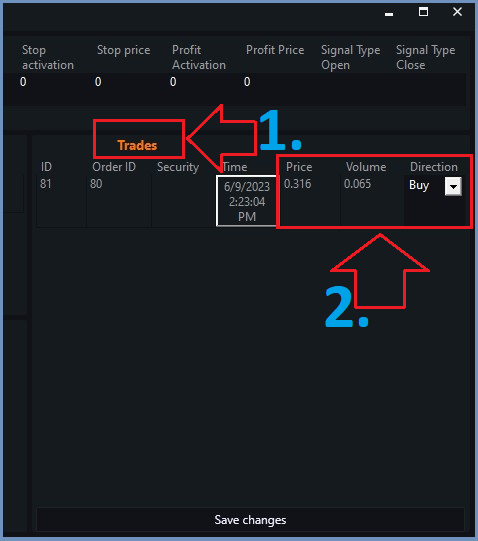
Check that the changes match where you made them.
1. «Direction».
2. «Price».
3. «Volume».
4. And click the «Save changes» button.
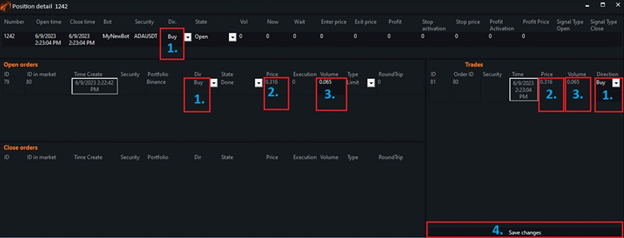
Attention! Write changes only in the specified cells, do not touch others!!!
The position has been created!
If something didn't work out or if you have any questions, write in the support chat, link.