Load the necessary number of candles on live connection.
For some algorithms, very deep data are needed to calculate indicators. Let's say we need data for 5000 candles, but in live trading there are only 500. How to make it so that there are immediately 5000?
In this post, we will learn how to load more data into live trading.
We'll do everything using the example of Binance Futures exchange with a 15-minute timeframe. Similarly, you can do it for any other exchange.
1. Go to OsData and download the data.
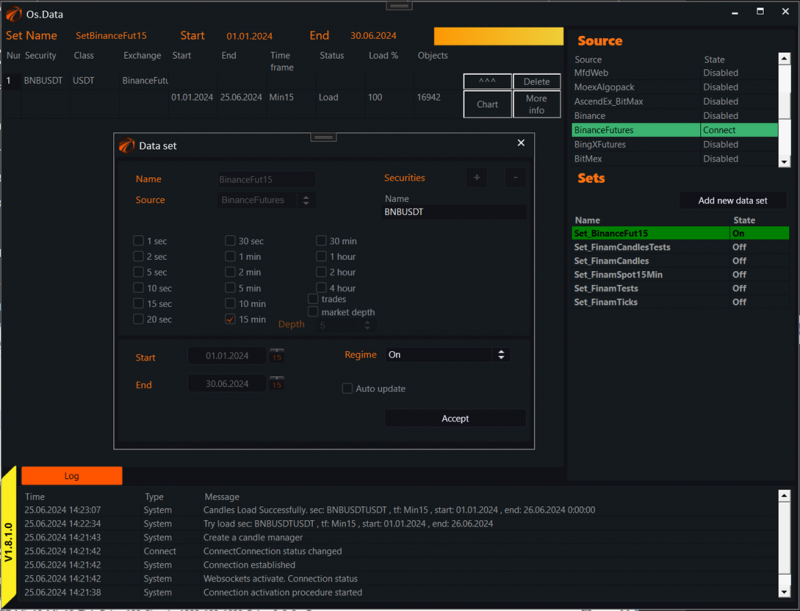
You need to download data for the instruments for the period and timeframe you need via OsData. This is basic. That is, you need to:
1. Turn on OsData.
2. Name the dataset with a meaningful name, so you can easily find it in the file system later.
3. Understand where the downloaded files are stored inside the dataset in the file system.
4. All this needs to be done before you want to load the files into live trading.
In the picture above, we have the BinanceFut15 dataset, where we requested the BNBUSDT contract from the beginning of 2024. This is 16942 candles. The data has already been downloaded.
Go to the file system and see where the data is stored inside this dataset:
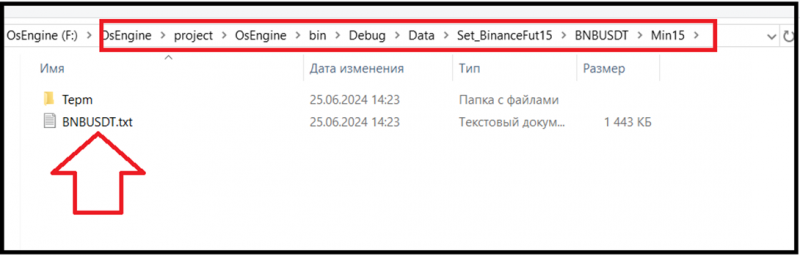
The content of this file will need to be copied to the candles on the real server.
2. Launch Bot Station Light and the necessary connector.
To do this, start the BinanceFutures connector and set the depth of loading candles from the file system. In this case, we set it to 20000.
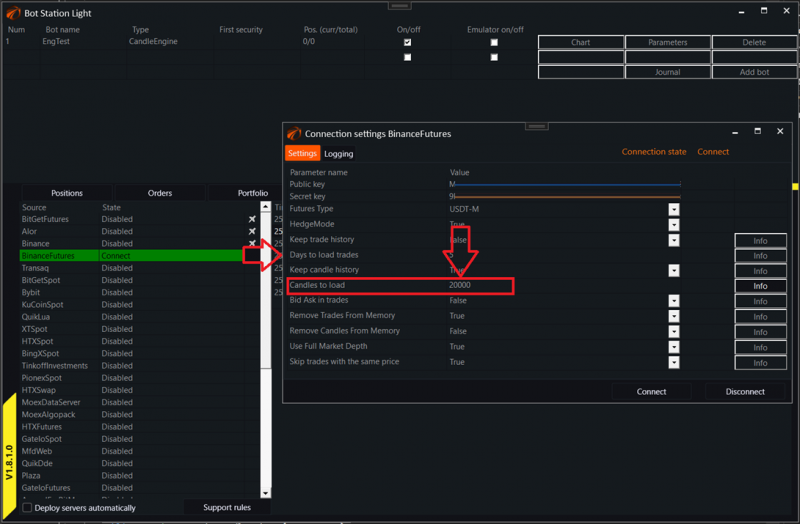
While not loading anything anywhere, simply create all our robots for live trading and connect to the desired exchange.
3. Create the necessary robots and configure the necessary securities.
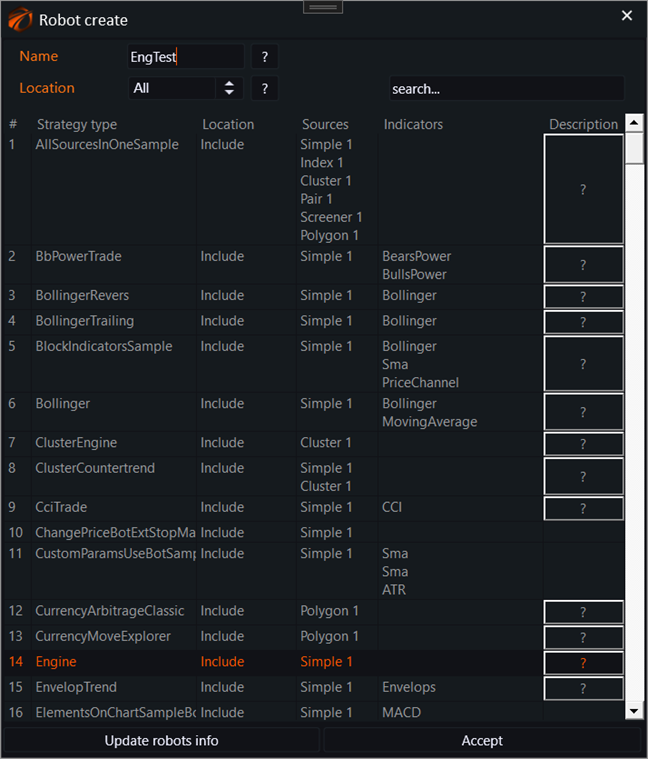
In this case, we create a robot EngTest of CandleEngine type:
And configure the data connection for our robot:
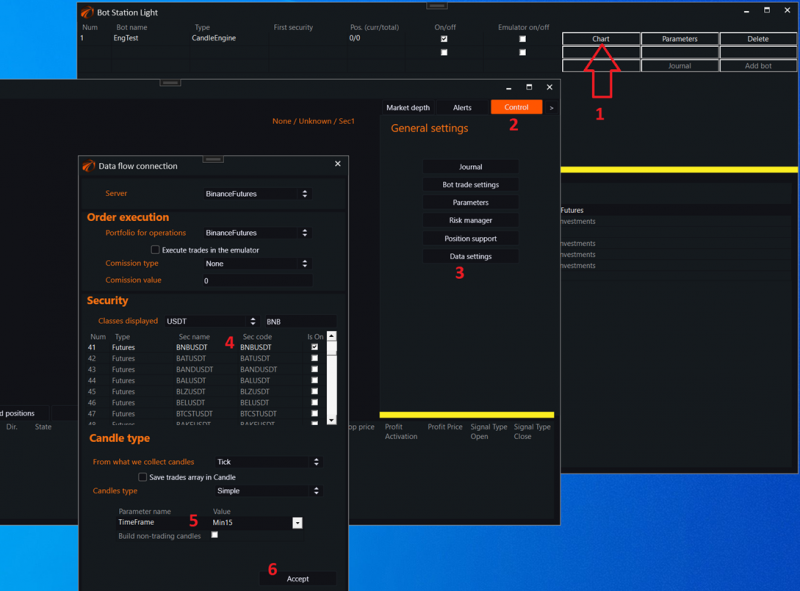
1. Call the robot's chart.
2. Go to robot management.
3. Call the data connection window.
4. Select the security. In this case, BNBUSDT.
5. Select the timeframe. In this case, it's Japanese candles with a 15-minute timeframe.
6. Click "Accept" button.
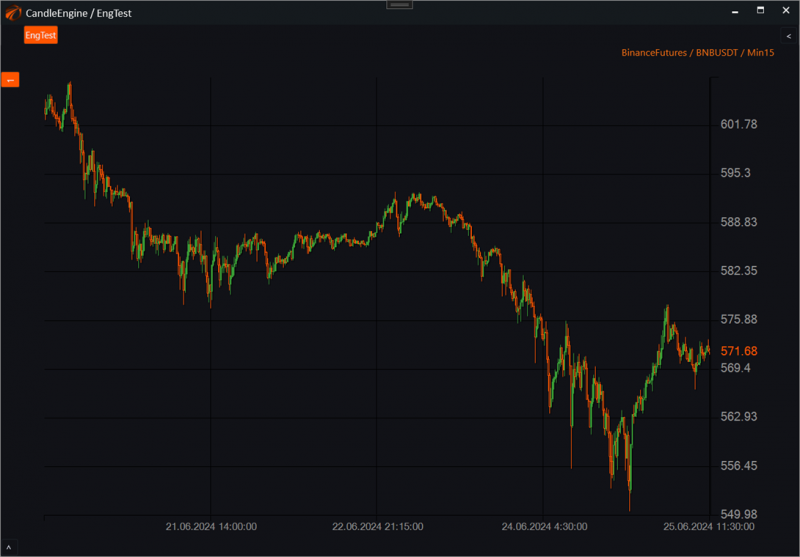
After this, we can see a few standard days of history on the chart:
At this moment, a special storage for candles in live trading is created in the Data folder. For BinanceFutures, it looks like this:
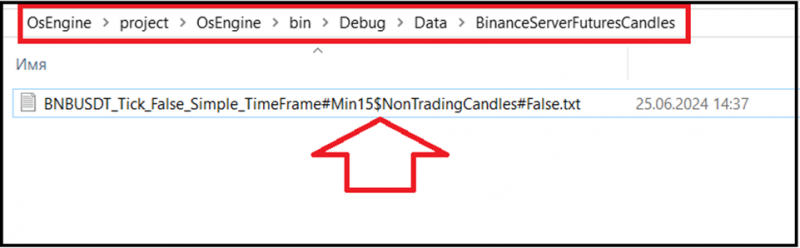
It is in this file that the candle data for a specific connector is stored. And if candles are added to it, there will be significantly more in live trading.
4. Transfer data from OsData to the live candle storage.
IMPORTANT!!! First, completely close OsEngine to stop it from interacting with the file system, only then continue. We need to transfer the contents of the file BNBUSDT.txt, which we downloaded via OsData, to the file created by the live connection for this instrument:
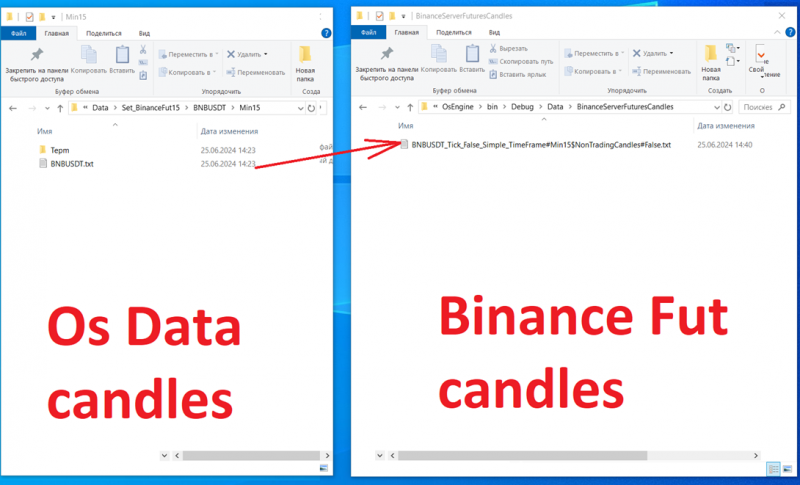
Open both files in Notepad and carefully copy one into the other. Save.
5. Restart OsEngine.
Turn on OsEngine, connect to the connector, and check how much data our robot now has:
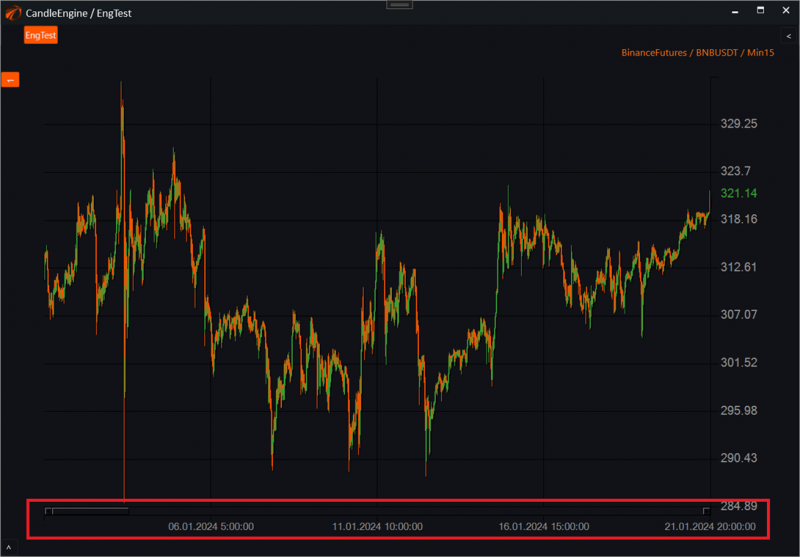
Hooray! The robot has data from the beginning of 2024. That is, for more than 6 months. About 17 thousand candles. The same amount we copied.
Successful algorithms!
If something didn't work out or if you have any questions, write in the support chat, link.