Distribution Services.
In OsEngine, there is a way to make robots send messages to various types of services.
1. SMS messages to a phone.
2. Email messages.
3. Webhooks.
4. Telegram.
This may be necessary for remote emergency control of robots.
In this article, we will consider the first 3 notification methods. You can learn more about Telegram notifications here and here.
1. Global rules and location of the distribution settings window.
Open the chart of a separate robot in Bot Trader.
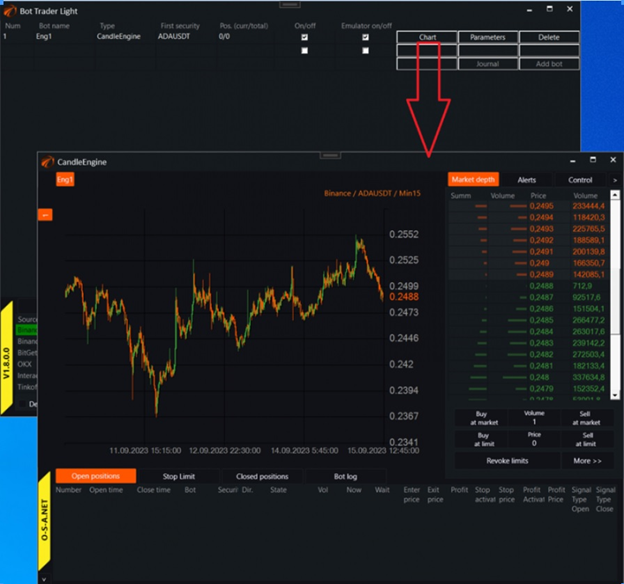
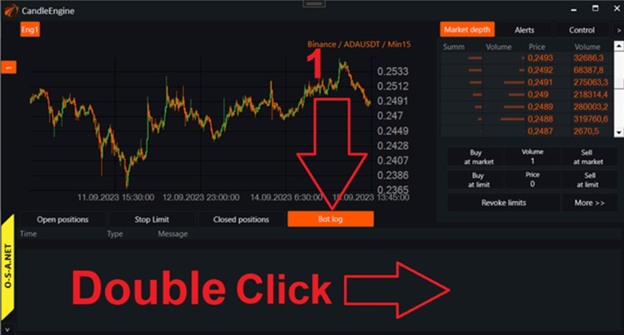
In the robot itself, go to the Bot log tab and double-click the left mouse button:
2. Settings for distribution in the visual interface.
Any robot will display a settings window for the distribution server like this.
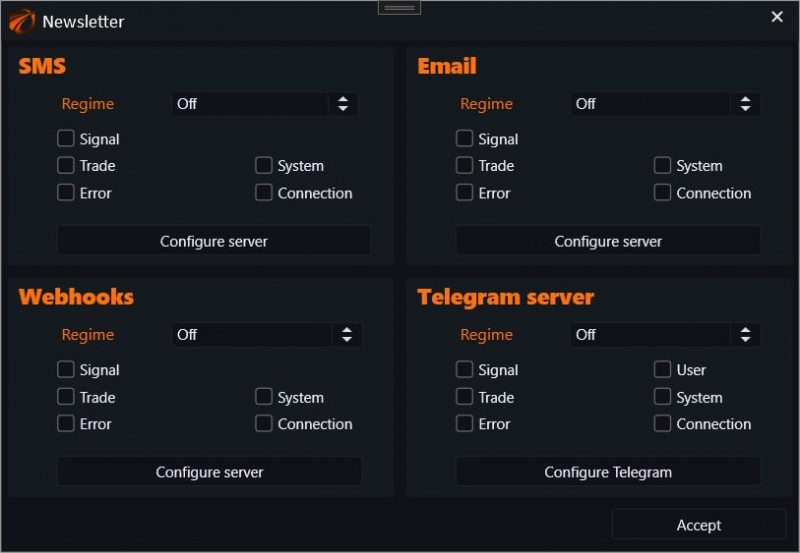
Next, we will examine the first three distribution methods separately.
2.1. Signal types for the log.
Each entry in the OsEngine robot log is marked with a certain type. Here is a list of the source codes.
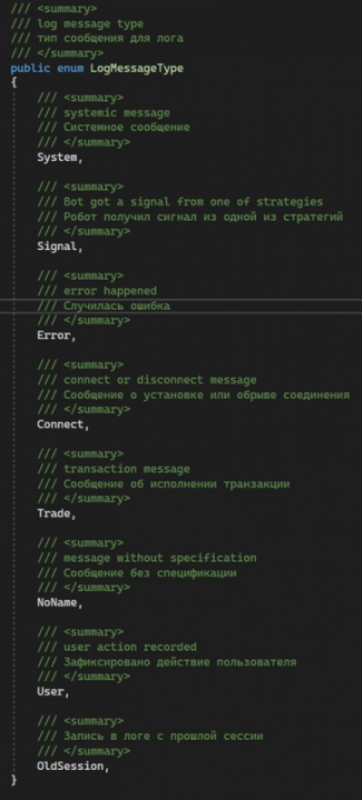
Each of these signal types is triggered by a specific section of code, either by the OsEngine core itself or by the robot code.
It is not necessary to make signals sent for all types of messages because there may be many of them, and only certain ones need to be sent.
In the visual interface, you can select the sent messages by switching the corresponding checkboxes, highlighted by red rectangles.
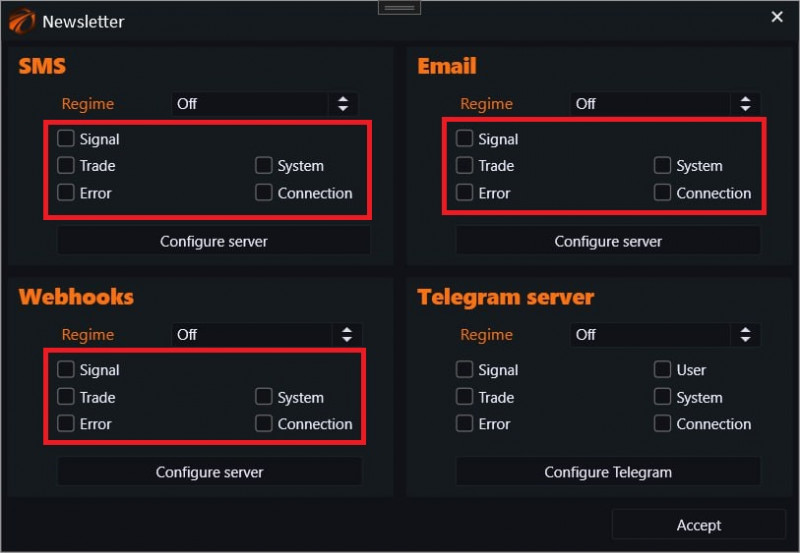
2.2. SMS distribution.
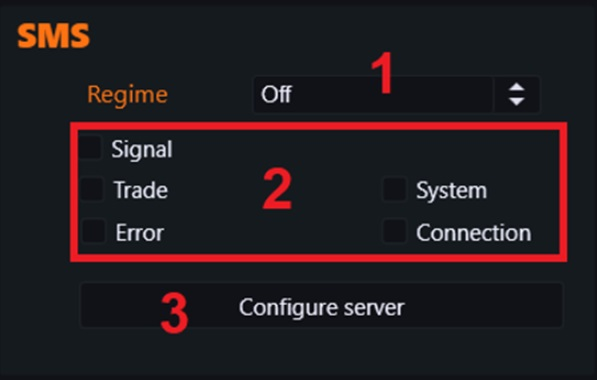
1) Operating mode. On / Off
2) Types of signals to be sent.
3) Server configuration.
By clicking on the server configuration button, we will see a window.
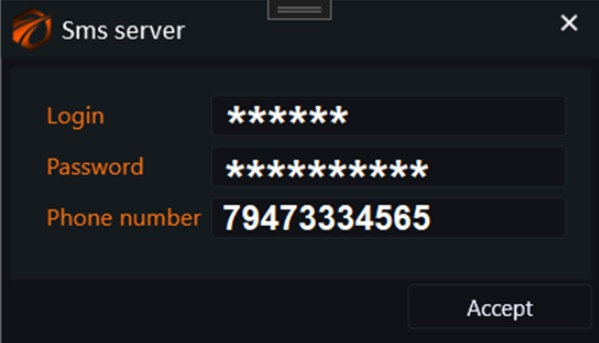
1) The service with which this SMS distribution works: smsc.ru. You must register there and take a login and password for sending SMS via the API.
2) The phone number should be recorded starting with the code, without a plus. If this is for Russia, then starting with the number 7. Without spaces!
3) Smsc.ru is the only service connected at the moment. If for some reason you cannot use it, then there is no point in connecting to another. It will not work!
2.3. Email distribution.
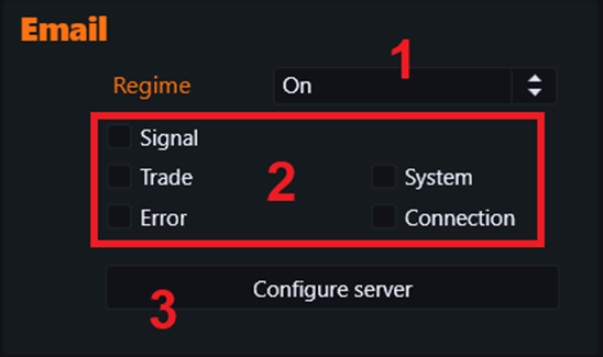
1) Operating mode. On / Off.
2) Types of signals to be sent.
3) Server configuration.
By clicking on the server configuration button, we will see a window.
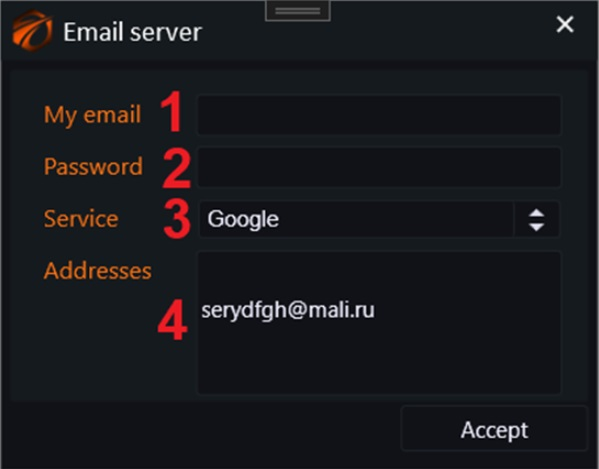
1) Your email from which messages will be sent.
2) Password for the email.
3) The service you will use:
- Google.
- Yandex.
- Nothing else is available, do not try.
4) Addresses to which messages will be sent. Each new address on a new line.
ATTENTION!
Simply entering your email address and password will not work. You need to go through a long activation of sending through the API on email service websites.
Google something like "Activation of sending from your mail via API SMTP Google/Yandex" and study the issue.
The visual at these email services changes every couple of months, so there will be no detailed instructions here, it will quickly become obsolete. Use a search in your browser.
2.4. Web hooks.
If you are not a programmer, you do not need to touch this distribution slot!!!
And if you are one, then go immediately to see the implementation of the ServerWeebhook class. To understand what exactly it supports, how it is implemented in our case, and whether there are any problems with something being outdated.
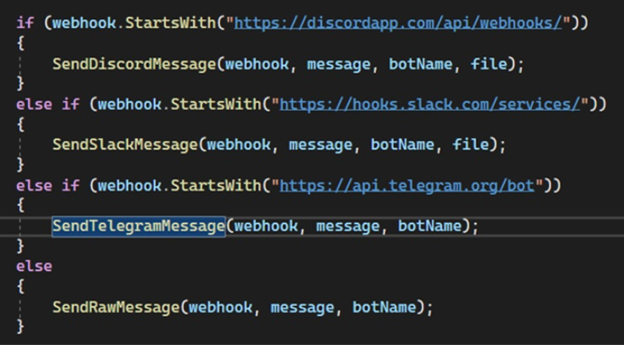
The basic settings are the same as for other servers:
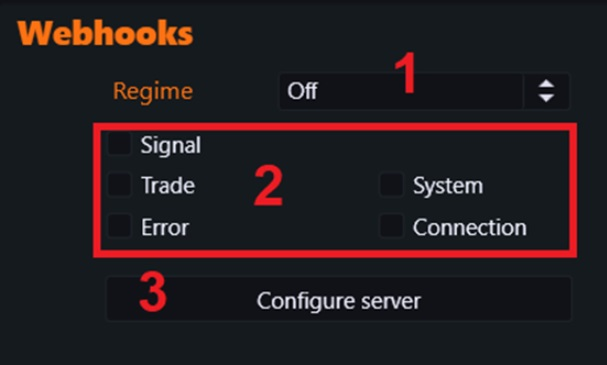
1) Operating mode. On / Off.
2) Types of signals to be sent.
3) Server configuration.
By clicking on the server configuration button, we will see a window.
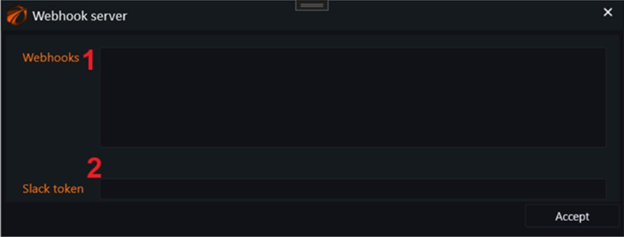
1) Webhook signatures.
2) For the Slack service, a separate token will be needed.
3. Sending additional messages from the robot code to the LOG.
In addition to the standard error messages and position opening messages in the log, you can also send any messages with any type of data from any robot.
To do this, you need to call the method described in BotPanel.
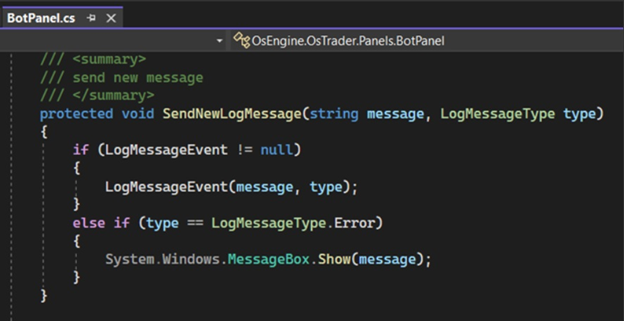
You can send a message using this method from the robot at any place, like this:

Arguments:
1) Message text.
2) Message type.
Enjoy using!
If something doesn't work out or if you have any questions, write in the support chat, link.